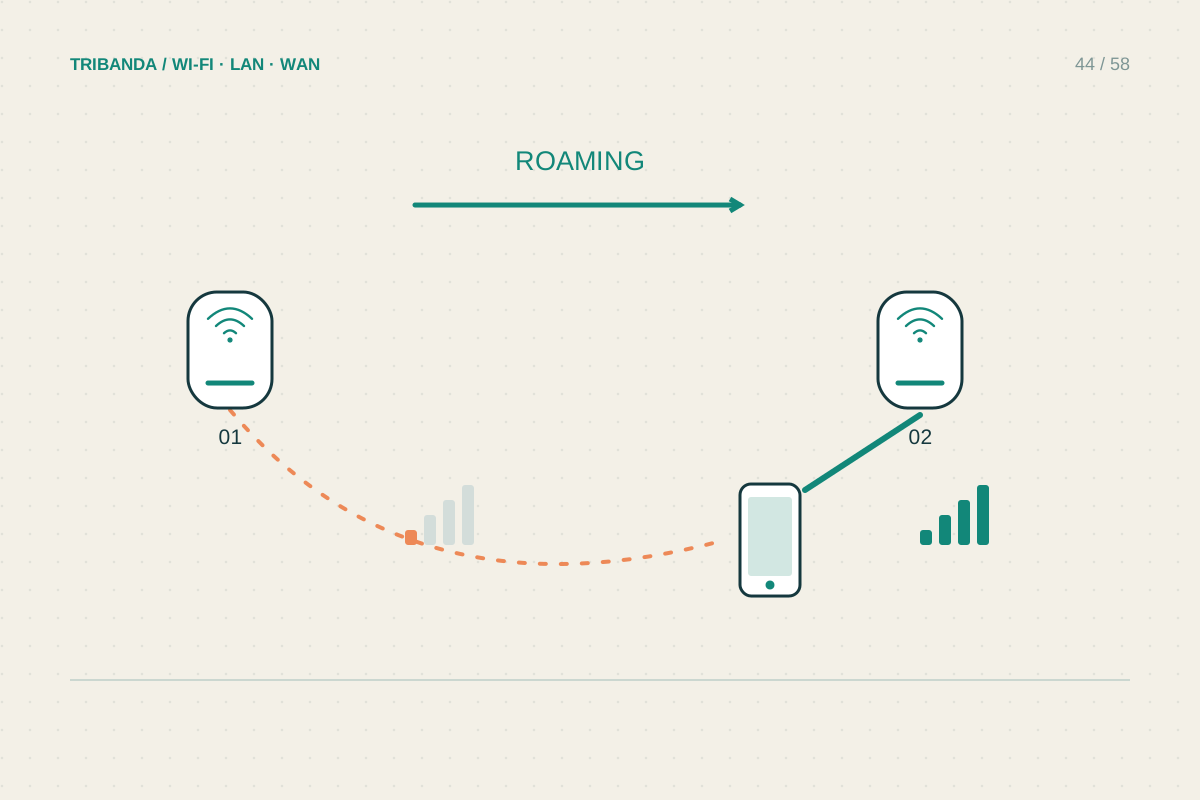
A mesh app may show a phone attached to a distant node even while it sits beside another. Distance alone does not decide the connection, and an app may update its display slowly. Investigate a real slowdown or interruption rather than trying to make every device match a floor plan.
Check whether there is an actual problem
Sit in the usual place and try the activity that matters: a call, a transfer or browsing. Note the node shown in the app, then refresh it after a short wait. Toggle Wi-Fi off and on once while stationary and compare again. This encourages a fresh connection without demonstrating that the earlier node was faulty. Repeat with a second phone if available. If the first remains usable and does not interrupt during ordinary movement, the displayed node may not justify any change. A stationary printer or television also does not need to roam simply because another node is closer.
Understand who chooses to move
The client device normally makes the roaming decision using its own thresholds and capabilities. Mesh systems can offer information or steering suggestions, but cannot guarantee that every client immediately chooses the physically nearest unit. Obstacles can make a farther node's radio path better. Roaming aids such as 802.11k, 802.11v and fast transition have distinct roles, and support differs between phones and routers. Enabling a feature does not upgrade an old client's capabilities. Check the manufacturer's guidance for the exact model before changing fast-roaming settings, particularly if older smart-home equipment starts having connection problems.
Adjust placement before adding more nodes
Walk a repeatable route during a nonessential call and note where audio breaks or throughput collapses. Check each node's upstream link, because a successful roam to a poorly connected satellite may still feel slow. Try moving an overly close node to improve useful coverage rather than creating excessive overlap. Change one setting or position and repeat the same route. Some products offer a preferred-node option for stationary clients; use it only where supported and test recovery if that node goes offline. Binding a phone that moves around the house can undermine the reason for mesh. Keep supported firmware and phone software current, then share a precise route and device model with support if failures persist.
Fix broken service during movement; a surprising node label by itself is not a failed mesh network.
Common questions
Can I force a phone to roam instantly?
Usually not through a universal setting. Client decisions and product-specific steering features determine the result. A reconnect can select afresh but is not seamless roaming.
Does fast roaming improve every device?
No. Compatibility varies. Compare the devices you actually own and retain a way to reverse the change if older equipment becomes unreliable.
Original technical illustration; schematic, not to scale.