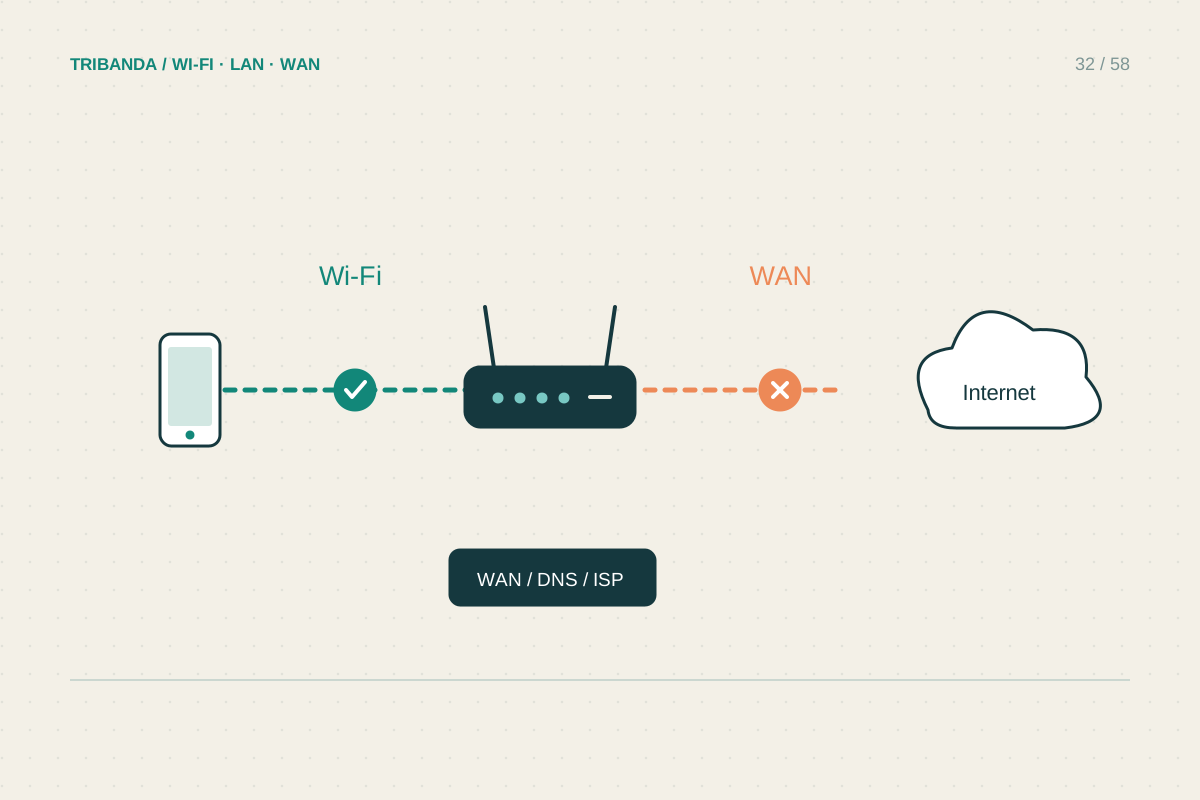
An offline label can mean a printer has lost Wi-Fi, a computer is looking for an old address or a print queue has stopped. Treat those as separate possibilities. Begin with the printer's display or network report, then compare what another device can do.
Confirm where the printer is connected
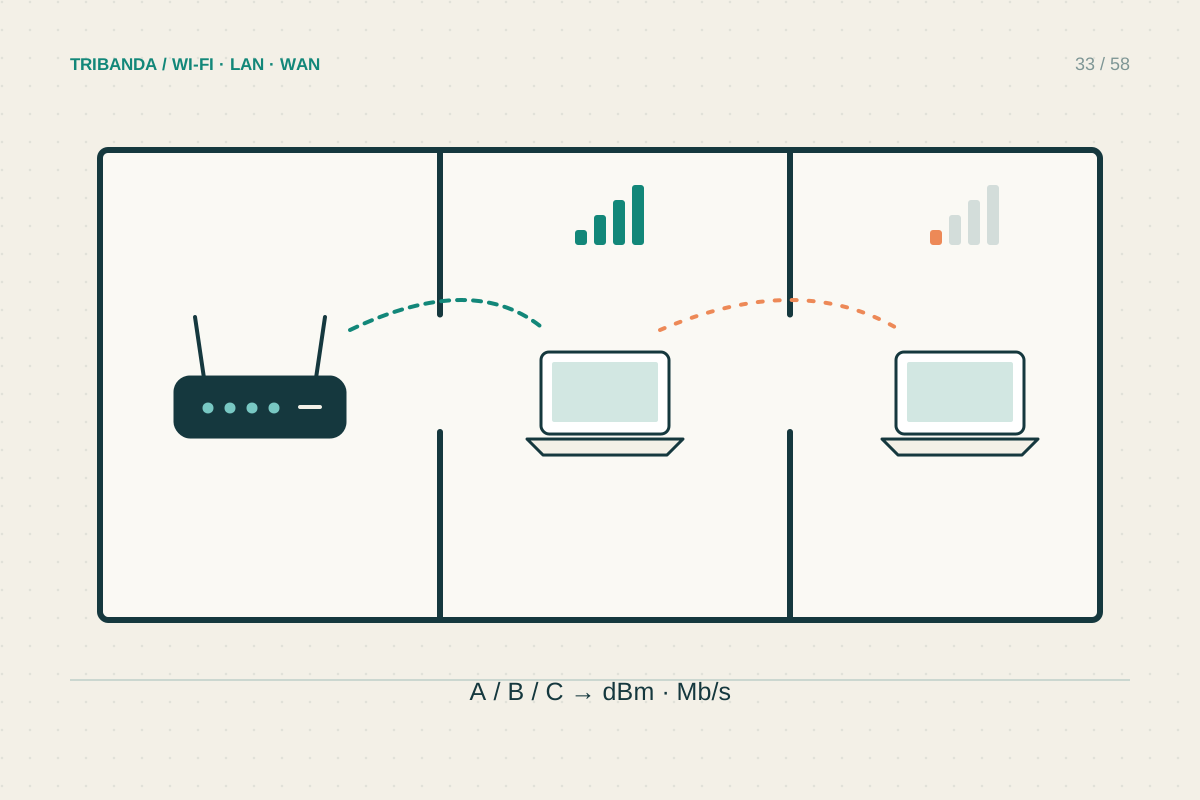
Print its network information page using the model's instructions, or read network status on its screen. Record the Wi-Fi name and current IP address. Check that it joined the main home network rather than an isolated guest network or a Wi-Fi Direct connection. Your computer and printer need a permitted local path; merely having internet on both does not establish that path. If the printer reports no connection, move it temporarily nearer the router and follow its supported Wi-Fi setup procedure. Verify its supported frequency band instead of assuming it can use the same bands as a new phone.
Separate printing from discovery
Try a small document from another device that previously printed successfully. If that works, inspect the first computer's queue, chosen printer and any paused or offline setting. Cancel only jobs you intend to discard. On Windows, the built-in printer troubleshooter can examine common queue and connection problems. If no device prints but the printer has an address, check its manufacturer-supported local management page when available. A reachable page with failed printing suggests a different problem from a missing radio connection. Avoid creating several duplicate printer entries while testing, because selecting an obsolete entry can make the fault appear to return.
Stabilise the working arrangement
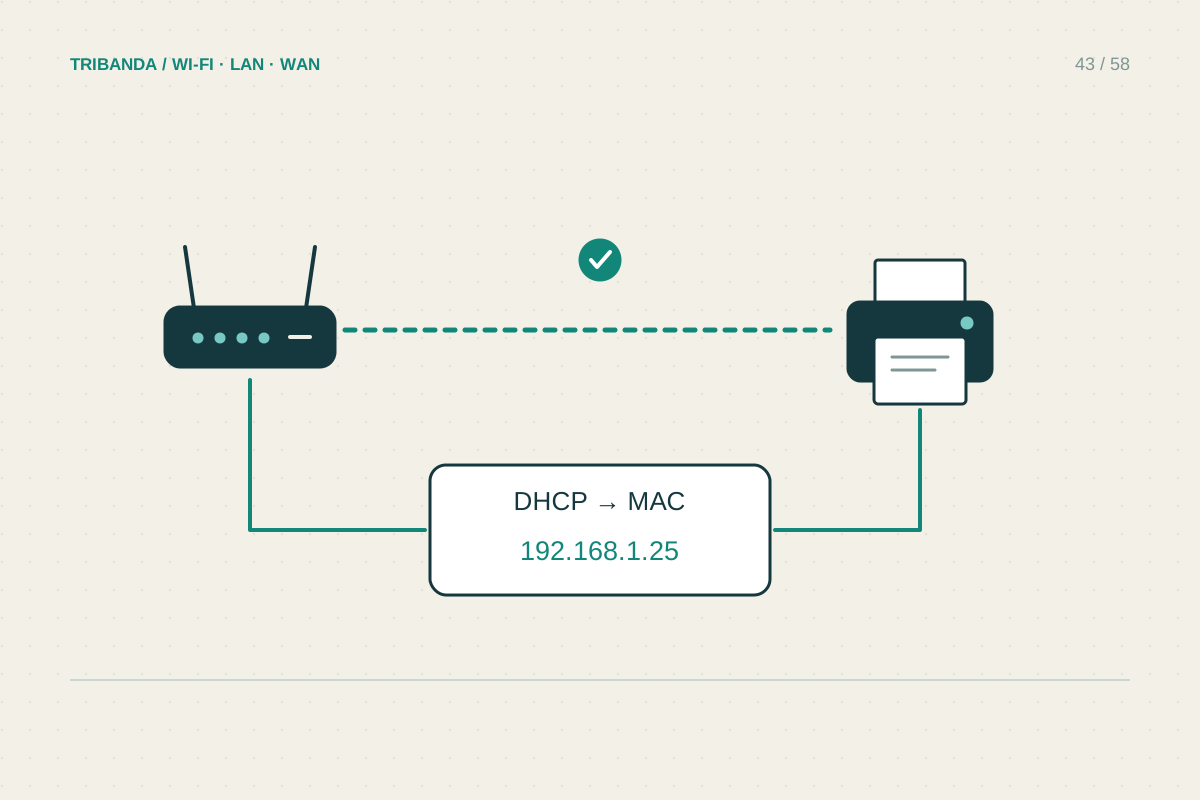
After the printer works, consider a DHCP reservation in the router so it receives a consistent local address. Use the printer's correct network interface identifier and keep the reservation inside the router's supported scheme; do not invent a manual address that conflicts with another device. If the printing software points to an old address, update or reinstall that specific queue using the manufacturer's guidance. Test after the printer sleeps and after a normal restart. Firmware or driver updates may help documented faults, but download them from official support for the exact model. If guest isolation caused the problem, keep the printer on the trusted network rather than disabling isolation for every visitor.
Give the working printer entry a clear name that includes its location. This reduces accidental selection of a previous USB connection or an obsolete duplicate after an update.
The printer's current Wi-Fi name, address and a second-device test are more useful than another blind reinstall.
Common questions
Does the printer need internet to print locally?
Often not, although cloud printing and account-based features may. Local printing depends on the supported local connection and software.
Should I disable the firewall to find it?
Do not leave protection disabled as a workaround. Check the printing application's documented permissions and the network profile, then make a specific change only when justified.
Original technical illustration; schematic, not to scale.