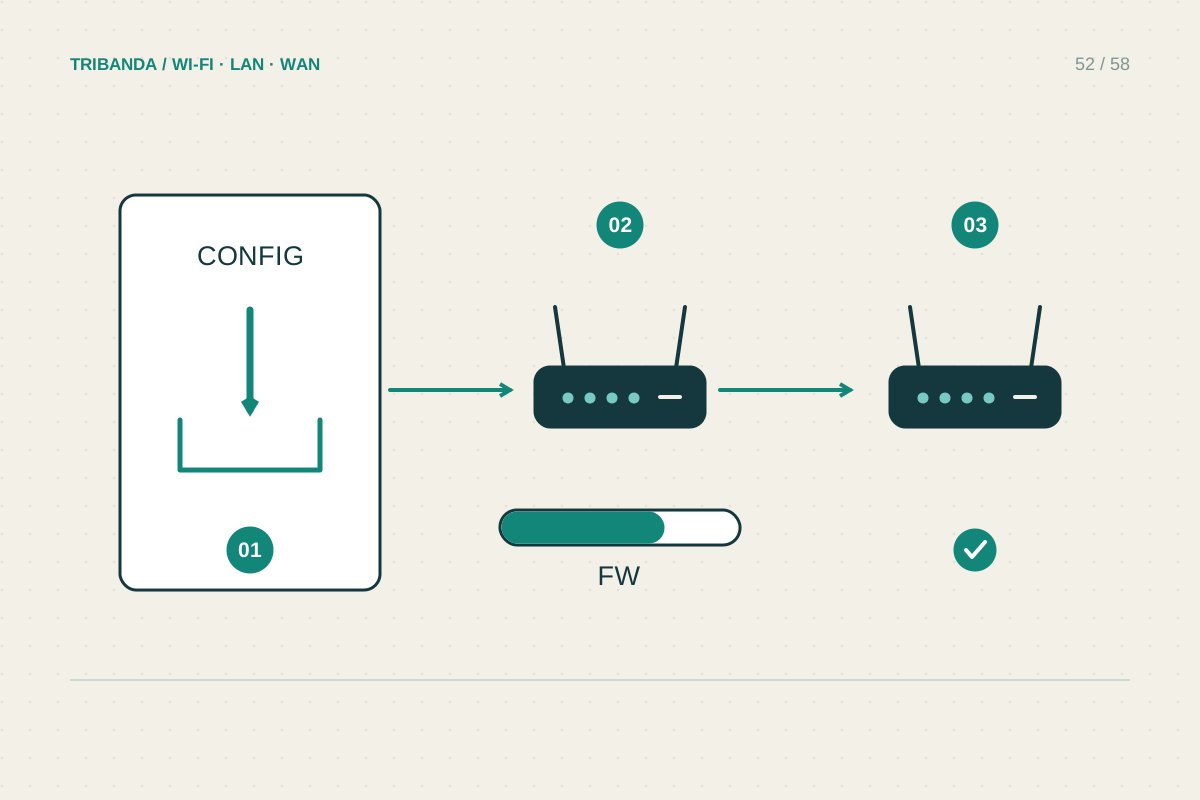
Firmware is the software running inside the router. Updates can correct defects and security problems, but the process must match the exact product and hardware revision. A familiar-looking model name is not enough, and an interrupted update can require a model-specific recovery procedure.
Identify the right update path
Record the model, hardware revision, purchase region and installed firmware from the label and management interface. Check the official support page or the router's supported app update mechanism. Provider-managed routers may receive updates through the operator and should follow that arrangement. Read the release notes, including whether settings will be reset, a particular intermediate version is required or downgrading is restricted. Do not download firmware from a forum attachment or a different regional product page simply because its version number is larger. A revision suffix can identify different hardware with a different compatible file.
Prepare a quiet maintenance window
Save a configuration backup and separately record essential connection information, because a backup may not be compatible with every later version. Keep a local copy of the instructions accessible while internet is unavailable. Tell the household that calls and downloads will stop. Use stable power and, for a manual upload, the connection method recommended by the manufacturer, commonly Ethernet. Do not start when power is unreliable or the computer is about to run out of battery. Confirm the selected file one final time before applying it. Some products use a downloaded archive that must be extracted; others accept a file directly or update entirely through the app.
Let it finish and check real services
During installation, leave the router powered and do not disconnect the update connection. The browser may lose contact while the router restarts; use the documented indicator sequence and completion time rather than repeatedly pressing buttons. After it is ready, reopen the interface and confirm the installed version. Check wired and wireless internet, guest access, a local resource and any voice or remote services you depend on. Compare any settings explicitly mentioned in the release notes. If the router fails to recover, consult the exact model's recovery instructions or official support; do not try arbitrary firmware files. Record the update date and successful version, then create a fresh supported backup after verifying the configuration.
Keep the pre-update notes until the household has used its normal services again. A successful firmware version display does not by itself confirm that every previous configuration still behaves correctly.
Correct hardware matching, uninterrupted installation and a functional check make an update a controlled maintenance task.
Common questions
Can I restore any old backup afterward?
Not necessarily. Backup compatibility varies by firmware and model. Follow the release notes and retain a written record of essentials in addition to the file.
Should automatic updates be enabled?
They can reduce missed fixes when the product supports them reliably. Review scheduling options and the provider's policy, then understand when service may restart.
Original technical illustration; schematic, not to scale.