Smart-plug setup can fail while the phone discovers the plug, while credentials are transferred or while the plug joins the router. Those are different stages. Read the exact model's instructions: a Wi-Fi plug, a Bluetooth-assisted plug and a hub-based device do not necessarily follow the same process.
Check the model and preparation
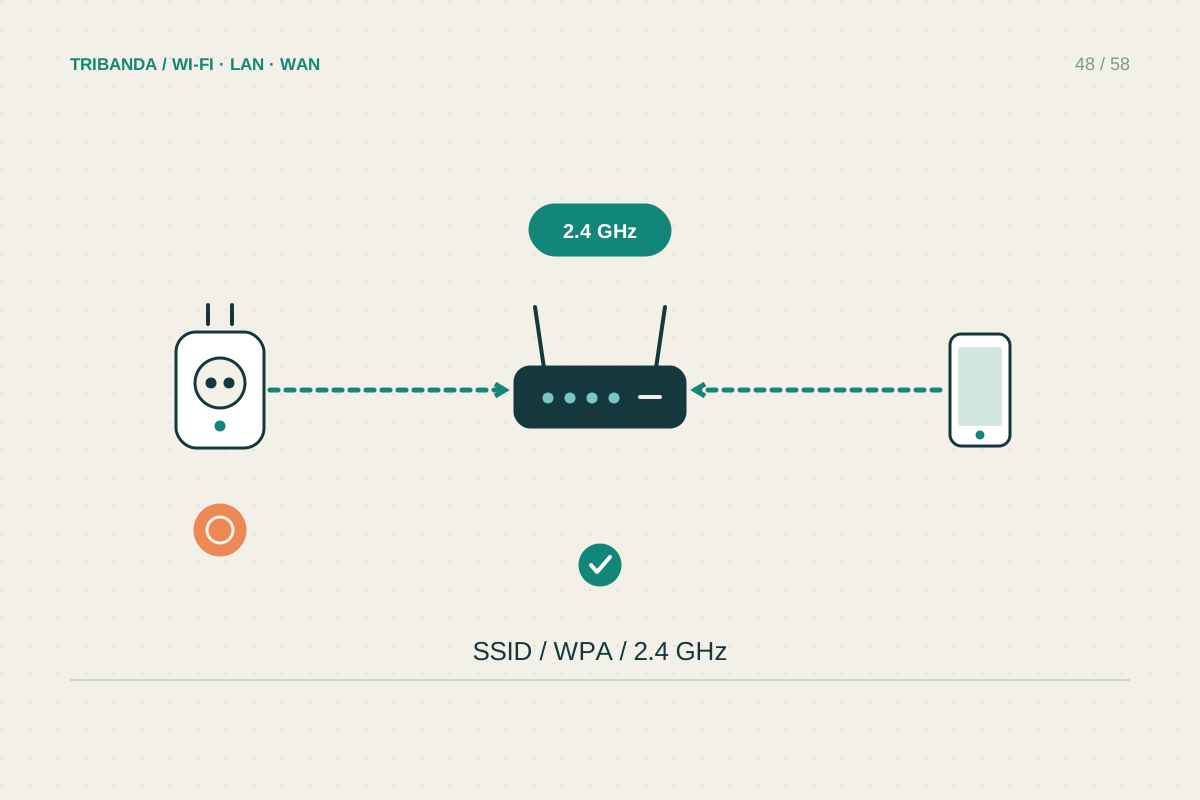
Confirm the plug's model number and required app, supported radio band and pairing indicator. Many Wi-Fi plugs use 2.4 GHz, but the product specification is the deciding reference. Set up one plug at a time near the router and leave the controlled appliance disconnected during diagnosis. Ensure the phone can access the home internet and grant the app the local-network or Bluetooth permission its setup needs. If a temporary device Wi-Fi network reports no internet, that may be normal: it can exist only to pass setup information. Follow the app's instruction to remain connected and return to setup.
Find where joining fails
If the app cannot find the plug, check pairing mode and the required phone permissions before editing router settings. If the home Wi-Fi name is missing, verify that a supported band is enabled and move closer. If it rejects joining, re-enter the correct Wi-Fi password, watching for spaces and similar characters. Check the router's blocked-device list and whether it has run out of assignable addresses. A private network with an incompatible security mode may require a supported secure alternative, such as WPA2-AES on a dedicated compatible network. Do not solve compatibility by leaving Wi-Fi unencrypted or weakening every device's security indiscriminately.
Test the final location and control path
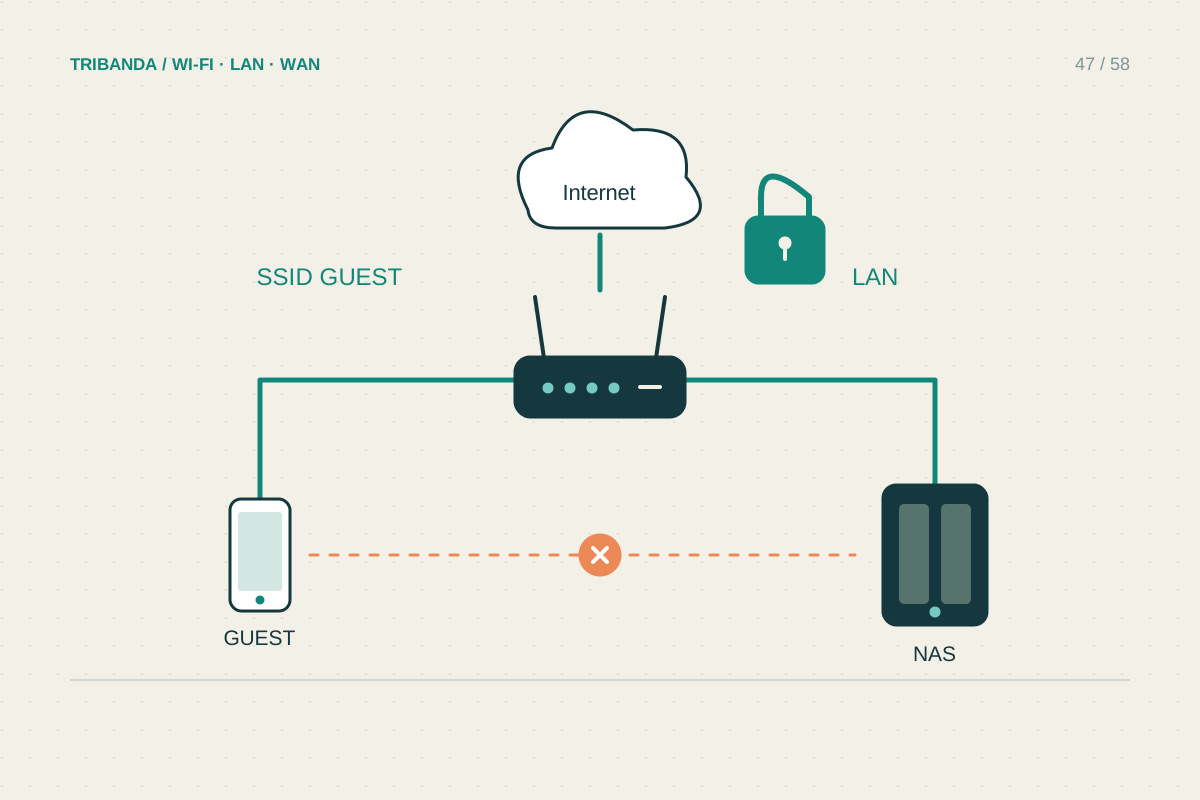
Once setup succeeds nearby, move the plug to its intended socket and test both local switching and the features you actually use. A metal appliance or a distant corner can make the final radio path worse than the setup position. Guest isolation may prevent local discovery or onboarding even when cloud control works; confirm the manufacturer's requirements before choosing an isolated network. Only use a factory reset when the model's procedure calls for it, since button timing and indicator meanings vary. Keep within the plug's electrical rating and intended load type. A successful Wi-Fi connection does not establish that a heater, motor or other high-load appliance is appropriate for that plug.
Name the plug by its actual location after setup. Clear labels in the app help prevent accidentally switching the wrong socket while checking whether a connection problem has returned.
Solve the failed setup stage first, then verify connectivity at the real socket and suitability for the intended appliance.
Common questions
Must I permanently disable 5 GHz?
Usually no. Some setup procedures benefit from a temporary compatible 2.4 GHz network, but follow the specific product guidance and restore ordinary settings afterward.
Why does the plug's setup Wi-Fi have no internet?
It may be a temporary local connection used to transfer settings. The plug gains internet only after it joins the home network successfully.
Original technical illustration; schematic, not to scale.